
Store / Help & Support / Plugin Software / Aries Black
Help & Support
Aries Black
Standalone compressor with Black character
Use Aries Black as an individual dynamics processor when you want its compression character without a full channel strip. It can be inserted on a track or bus, depending on the material.
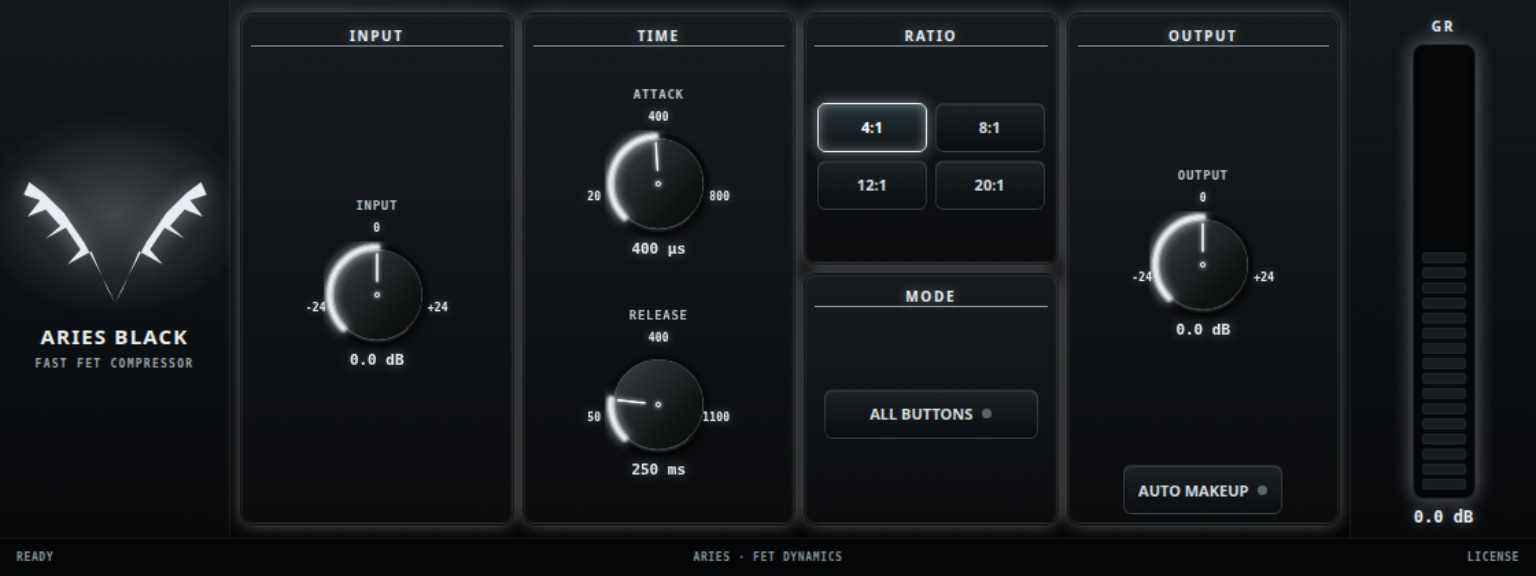
Practical approach
- Insert the plugin and establish a reasonable input level.
- Increase compression until you hear the intended change in transient control and body.
- Adjust any available timing, threshold, ratio, drive, mix or makeup controls according to what your installed version exposes.
- Check the gain-reduction meter and compare at similar output loudness.
- Keep peaks under control downstream without mistaking a louder result for an inherently better one.
Troubleshooting
- Little or no gain reduction: Feed enough signal to reach the compression threshold.
- Loss of punch: Ease the amount or adjust timing when available.
- Level jumps: Check manual and automatic makeup choices.
This guide describes the intended use of the standalone product; exact control labels should be checked against the installed version before website publication.
General setup and advice
Load the plugin in a compatible VST3 DAW and confirm that its license is active. Start with a sensible input level, then adjust the controls while listening in the context of the full mix. Plugin output controls do not replace the DAW fader; use the fader for creative balance and automation. If a meter has no reading, verify that audio is reaching the plugin and that playback is active.
Aries Link: Where a guide mentions automatic communication, participating plugins must be loaded in the same compatible session and the relevant functions enabled. Aries Link is a control/analysis connection, not an extra audio cable. It does not replace normal bus routing.
Security: Downloads are unsigned. Your operating system may require manual authorization. Review security notices before proceeding.