
Store / Help & Support / Plugin Software / Aries Blue
Help & Support
Aries Blue
Standalone compressor with Blue character
Use Aries Blue when you want its distinct compression character as a standalone insert rather than a multi-effect channel strip. Its settings should serve the material, not a fixed loudness number.
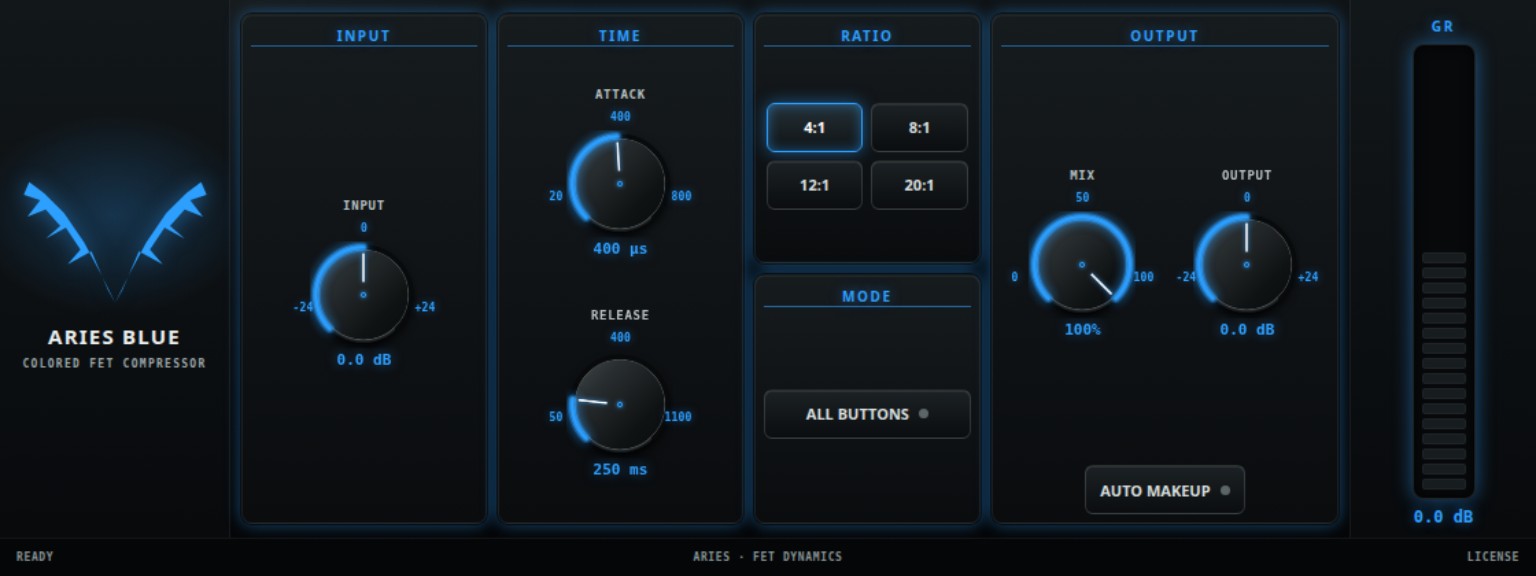
Practical approach
- Place Blue on the track or bus to be controlled.
- Start with light compression and increase gradually while listening for shifts in attack, body and sustain.
- Adjust the timing and dynamics controls exposed by your plugin version.
- Compare with bypass at similar perceived level.
- Watch for excessive makeup gain or peaks after compression.
Troubleshooting
- Unexpectedly soft output: Inspect output/makeup controls.
- Audible pumping: Reduce compression or adjust release where available.
Exact parameter descriptions require validation against the shipping UI before publication.
General setup and advice
Load the plugin in a compatible VST3 DAW and confirm that its license is active. Start with a sensible input level, then adjust the controls while listening in the context of the full mix. Plugin output controls do not replace the DAW fader; use the fader for creative balance and automation. If a meter has no reading, verify that audio is reaching the plugin and that playback is active.
Aries Link: Where a guide mentions automatic communication, participating plugins must be loaded in the same compatible session and the relevant functions enabled. Aries Link is a control/analysis connection, not an extra audio cable. It does not replace normal bus routing.
Security: Downloads are unsigned. Your operating system may require manual authorization. Review security notices before proceeding.