Store / Help & Support / Plugin Software / Aries Bus Control
Help & Support
Aries Bus Control
Group balancing and output control
Place Aries Bus Control near the end of each group bus, after its group-specific Aries processor. Examples: Aries Drums → Bus Control; Aries Bass → Bus Control; Aries Guitar → Bus Control; Aries Vocal → Bus Control; or synth takes → Synthesizer Bus with Bus Control.
Main workflows
- Group balancing: Adjust incoming stereo pairs or channels, where your DAW supports multichannel bus input.
- Channel controls: Gain, Pan, Mute and Solo for supported input pairs.
- Tone: Learn/adjustments and controls for rumble and harshness where applicable.
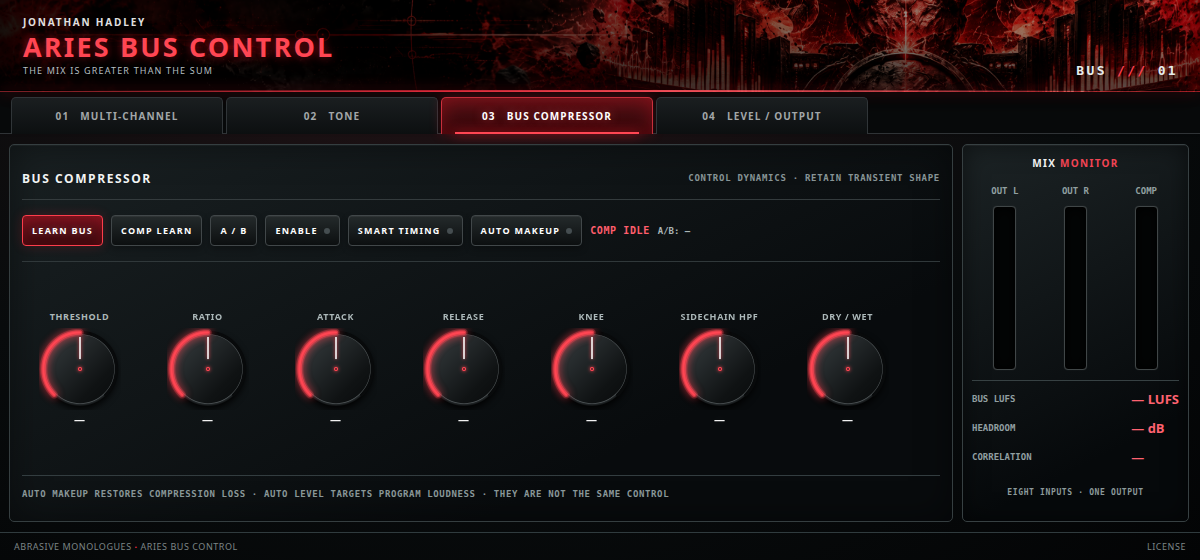
- Compression: Set threshold, ratio, attack, release, knee, sidechain high-pass filtering, mix and smart timing.
- Learn and A/B: Where shown in your version, use Learn to establish a starting state and A/B to compare alternatives.
- Loudness and output: Follow the loudness reading and output level while preserving headroom. A −14 LUFS reference is a starting point, not a command to erase musical dynamics.
- Ceiling, Mono Fold and Bypass: Check technical limits and compatibility without replacing the stereo/mix decisions of the DAW.
A first mix
- Confirm the group's tracks are correctly routed to the bus.
- Establish individual source sounds first.
- Use Bus Control to establish a coherent group output and tonal/dynamic foundation.
- Listen to the group alongside other groups in the Instrument Bus or Stereo Bus.
- Preserve the DAW fader for artistic balance and automation.
Troubleshooting
- No input on a channel pair: Check the DAW channel map; a multi-input plugin cannot create tracks that were never routed to it.
- Level keeps changing unexpectedly: Check Learn, compression, automatic leveling and manual trim interactions.
- Group sounds narrower: Review Mono Fold and stereo input routing.
General setup and advice
Load the plugin in a compatible VST3 DAW and confirm that its license is active. Start with a sensible input level, then adjust the controls while listening in the context of the full mix. Plugin output controls do not replace the DAW fader; use the fader for creative balance and automation. If a meter has no reading, verify that audio is reaching the plugin and that playback is active.
Aries Link: Where a guide mentions automatic communication, participating plugins must be loaded in the same compatible session and the relevant functions enabled. Aries Link is a control/analysis connection, not an extra audio cable. It does not replace normal bus routing.
Security: Downloads are unsigned. Your operating system may require manual authorization. Review security notices before proceeding.