Store / Help & Support / Plugin Software / Aries Vocal
Help & Support
Aries Vocal
Vocal-bus learning, processing and creative control
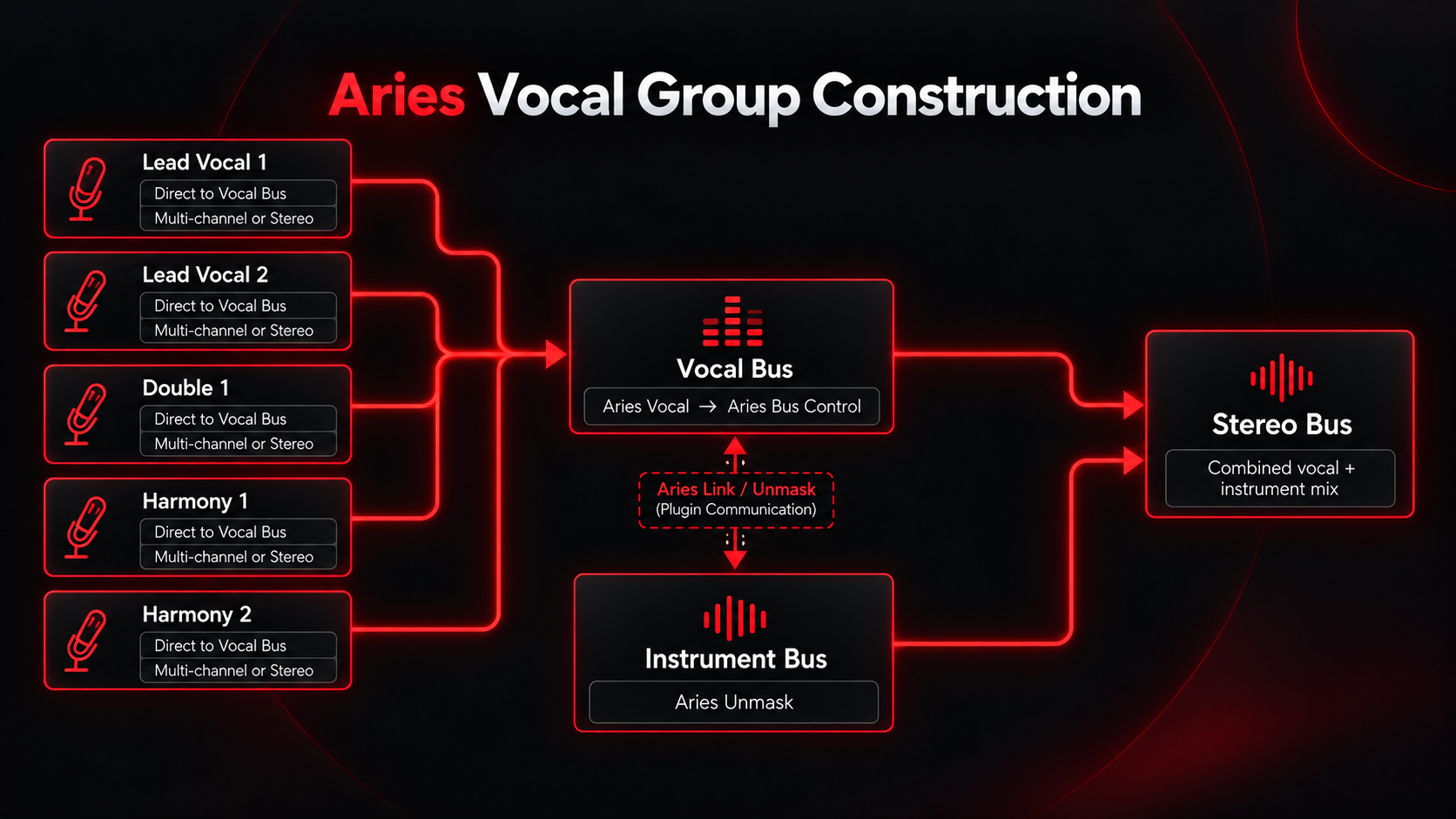
Route lead vocals, doubles, harmonies and other vocal takes to a Vocal Bus. Use a regular stereo bus or, where your DAW supports it, distinct multichannel inputs for separate vocal groups. Insert Aries Vocal, followed by Aries Bus Control, on the Vocal Bus. Route that bus directly to the Stereo Bus, alongside the Instrument Bus.
A first mix
- Confirm that all vocal takes reach the intended bus and that group assignments are sensible.
- Play representative sections of the performance, including its quiet and loud passages.
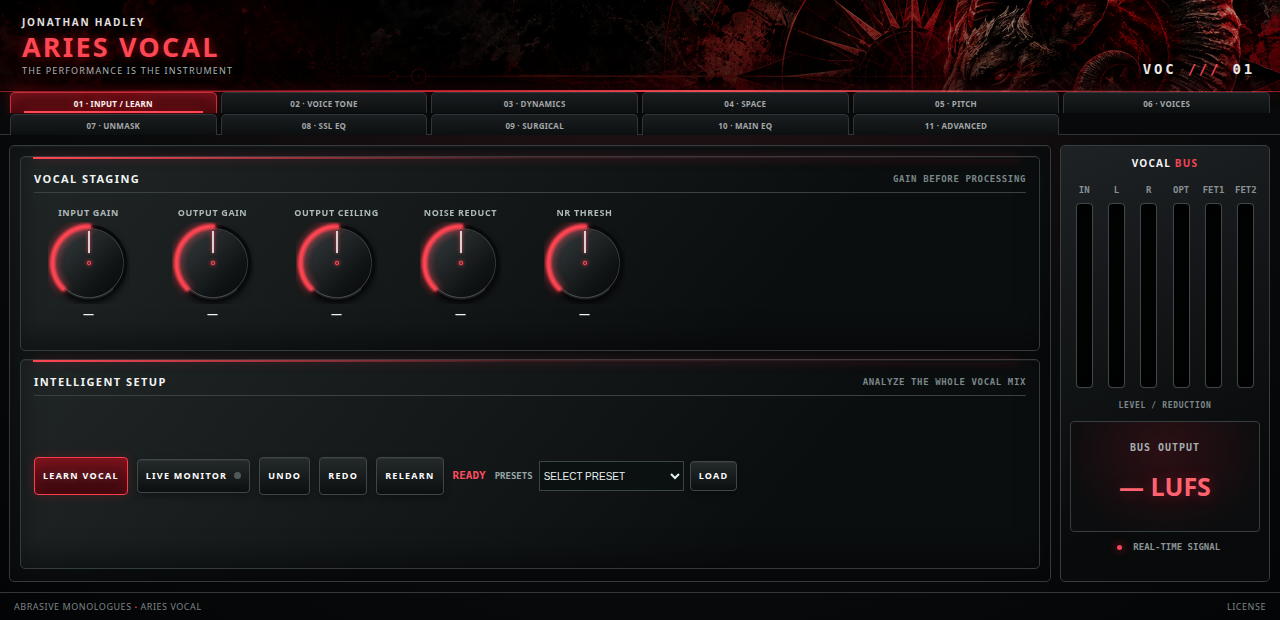
- Run Learn with enough voiced material for its analysis stages to complete. Do not judge a learn result from silence or a single short phrase.
- Listen to the result alongside the instruments. Adjust the group's tone, compression, space and final level to taste.
- Use the DAW fader and automation for musical movement after the starting balance is established.
Main features
- Input / leveling: Establishes a sensible starting level and helps manage inconsistencies without treating every quiet phrase as a mistake.
- Tone and de-essing: Helps shape clarity and control excessive sibilance.
- Compression: Optical and solid-state stages provide different kinds of dynamic control; watch actual gain-reduction meters when adjusting them.
- Group processing: Lead, doubles and harmonies can have distinct processing where their routing is supported.
- Pitch: Optional correction; use deliberately, preserving the performance's intended expression.
- Space: Chorus, delay and reverb add width and atmosphere; balance their wet contributions against vocal intelligibility.
- Output: A learned loudness starting point and user output trim are not the same as performance riding or DAW automation.
Automatic unmasking
Insert Aries Unmask on the Instrument Bus. Aries Vocal communicates vocal activity through Aries Link so Unmask can selectively make space in competing instrument frequencies. The instrument audio remains on the Instrument Bus; the Vocal Bus still feeds the Stereo Bus separately. Adjust unmasking by ear: more is not automatically better.
Troubleshooting
- Learn is not progressing: Feed the plugin audible, representative vocal material and confirm group inputs.
- Vocal sounds overprocessed: Reduce compression, corrective intensity or effects; compare bypassed and active sound at similar levels.
- Unmasking seems inactive: Confirm Aries Vocal and Aries Unmask are both present, enabled and receiving their respective audio.
- Multichannel group not behaving correctly: Check the DAW's bus/channel mapping. A stereo sum cannot recover independent vocal groups.
General setup and advice
Load the plugin in a compatible VST3 DAW and confirm that its license is active. Start with a sensible input level, then adjust the controls while listening in the context of the full mix. Plugin output controls do not replace the DAW fader; use the fader for creative balance and automation. If a meter has no reading, verify that audio is reaching the plugin and that playback is active.
Aries Link: Where a guide mentions automatic communication, participating plugins must be loaded in the same compatible session and the relevant functions enabled. Aries Link is a control/analysis connection, not an extra audio cable. It does not replace normal bus routing.
Security: Downloads are unsigned. Your operating system may require manual authorization. Review security notices before proceeding.